
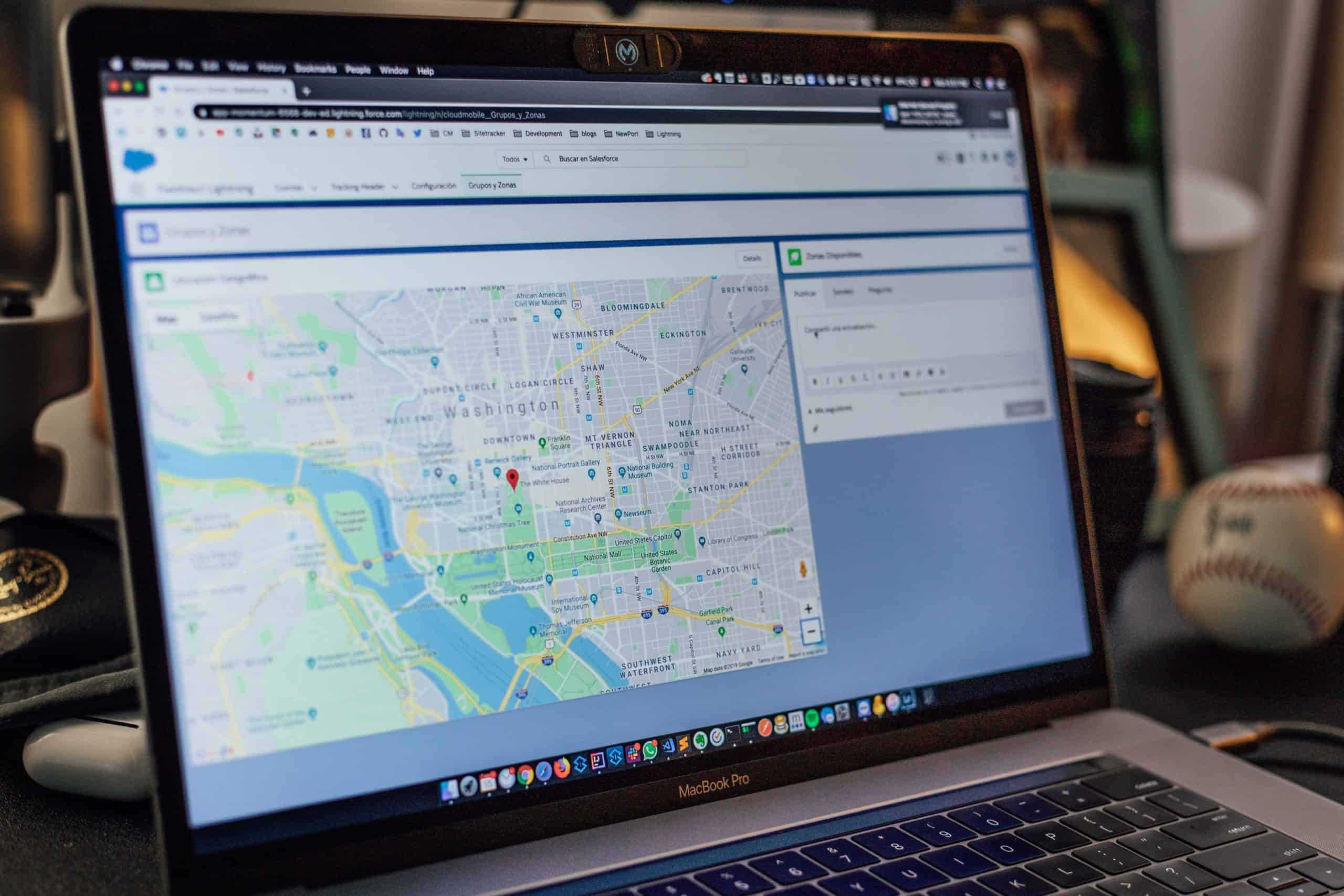
I’m sure many of you use Google Maps all the time in your day-to-day life. Whether it be to get to and from work, school, groceries, or wherever you may be going, it’s something almost everyone uses. It’s a useful tool and does what it does very well. But, did you know that there’s way more to Google Maps than just navigation? There’s several ways that I leverage this great tool to help with travel planning. In this article I’ll show exactly how to maximize google maps to plan your next trip.
Contents
Navigation
Navigation is Google Maps’ bread and butter. This is why you’ve already downloaded the app. This is what you use every day to get you from place to place. I’m going to assume you know the very basics of how to work Google Maps and spare you the boredom of explaining how to type in a location and get directions to it.
Instead, I’m going to go over two simple, but useful, navigation features on Google Maps that can help you on your travels:
- Public Transportation
- Offline Maps
Public Transportation
Even though lots of cities have their own apps to help you navigate public transportation, they can be pretty hit or miss in terms of quality. Fortunately, at least in Europe and the US, Google Maps has very reliable information on public transportation routes, whether it be metro, bus, tram, or some other form of transportation.
To access the public transportation directions on your phone, start the same way as for driving directions, but before you hit start, click on the public transportation icon, which looks like a metro car.
Now you will see a list of options giving you different potential routes to your destination (assuming there are multiple ways to get there). Included in these instructions are stop names, route names/numbers, route end destinations, and timetables.
If you have preferences between different modes of transportation, or prefer convenience over speed, you can update settings by clicking the “Options” button in the upper right hand corner. From here you have the ability to select specific types of transport as well as route options including “fewest transfers” or “least walking”.
I use this feature all the time, both at home and abroad. The directions are very reliable, and they often do a good job of informing you on delays and other changes that may occur, although you should still trust any in-person announcements over what you see on Google Maps.


Offline Maps
One of my favorite features that you probably won’t stumble upon on your own is the offline maps option. When we’re at home living our normal lives, most of us have unlimited data plans and don’t think twice about the amount of data we’re using. But when we’re traveling, data is at a premium, whether you’re using your carrier’s international plan, or buying an international sim card, unlimited data is not usually a thing when you’re traveling abroad. This means that saving data = saving money, and offline maps help you do that.
The offline maps feature allows you to select a map area and download it for offline use. This means that you’ll have access to driving and walking directions in this area without a data connection. Unfortunately you can’t access traffic or public transportation information since this requires a data connection in order to give accurate info.
To create your own offline map, follow these steps:
- Tap your profile icon to open the menu
- Once in the menu, select “Offline maps”, indicated by a cloud icon with a slash through it
- Choose “Select your own map”
- Navigate to the area you want a map for
- You can zoom in and out and adjust the location of the rectangle that indicates the area to be downloaded
- Note that a larger area will take longer to download and use more space on your phone
- Select “Download”
- Your map will now be visible in “Offline maps”


Research
Google has one of, if not the, most extensive collection of reviews for restaurants, hotels, and tourist attractions. They are also easier to access and arguably more reliable than other sources such as TripAdvisor or Yelp.
When planning for a trip I will spend hours scouring Google Maps looking for that hidden gem of a restaurant, or picking the hotel that fits what I need. To make things simple, we can break down the research capabilities into three categories:
- Hotels
- Attractions
- Restaurants
Hotels
Google Maps has one of the best search engines for finding hotels. To start searching, first navigate to your destination; you can do this by typing it in the search bar or just moving the map. Next, either select the “Hotels” button on the top of the screen or type “Hotels” in the search bar.
Once you do that, the screen will look something like this: (picture here)
On the left side of the screen you can select your dates, number of guests, and price range. You’ll also see a list of hotels. If you hover over a hotel on the list, it will be highlighted with a red pin on the map.
If there’s lots of options in the area I’m looking at, I always start by filtering the “Guest rating” to a minimum of 4 stars. It’s also generally a good idea to select the “Free cancellation” option, as this provides some level of security so that a possible change in plans won’t cost you money.
Now that you’ve filtered down to options that should at least be good enough, you can either filter down further by amenities such as free wifi, breakfast, or pet friendliness, or you can start checking out individual hotels.
To get more details on an individual hotel, you can either click on it on the list on the left of the screen, or click on the icon showing its price on the map. From this screen you can get more details on the price and reviews of the hotel, and usually a link to its website.
When searching on Google Maps, the site shows the lowest price offered. This could be from the hotel itself or through any number of third party sites. Always be careful if you decide to book through a third party app such as Booking.com or Hotels.com. These sites can be an easy way to save money but can also be a platform for scams. Be sure to check reviews both on Google Maps and the third party site to be sure that the hotel is legit.
If you click on the “Reviews” tab, you can get more information on what goes into the overall score for the hotel. This includes the breakdown of 5, 4, 3, 2, and 1 star reviews, as well as average review scores among groups such as Families, Couples, Business travelers, and Solo travelers. I always make sure to look at individual reviews and sort by “Newest” to get a look at the most up to date information. This is an important step because sometimes hotels will have overall good reviews, but recently the quality may have slipped. In particular, watch out for reviews about things such as cleanliness, bugs, or rodents.
In general, if negative reviews are highlighting things such as rude staff, small rooms, or other somewhat trivial and subjective things, I’ll generally chalk that up to a bad day or perhaps a bad customer. However, repeated reviews of bad cleanliness or bugs, especially if the reviews are recent, is a giant red flag and I would stay away unless there’s no other options, even if the overall average of reviews are good. The risk of bedbugs or other pests making their way into your stuff just isn’t worth it.
If you’re ready to book you can click the link to the official hotel site on either the “Overview” or “Prices” tab, this should carry over your reservation info including dates and guest count. From there you can reserve as you normally would.


Attractions
Google Maps does a good job of highlighting important attractions, museums, and historical sites without requiring an explicit search for them.
The most famous sites at your location might be marked with outlines of what they look like. For example, when searching for Washington D.C. you’ll see outlines of buildings such as the White House and Washington Monument.
Other attractions may be marked by a tower icon, a camera, or a building with an M (denoting a museum).
It’s always worth at least checking these sites out. If Google thinks they’re important enough to highlight, then at least someone must find them interesting. You can find the name of the attraction just by hovering your mouse over the icon on the map.
If it sounds interesting to you, click on the icon to see more information. Here, you’ll have access to things such as opening hours, ticket prices, reviews, and a link to the website if there is one.
I particularly like to utilize this by zooming in on places I already know I’m going such as the place where I’m staying or a main attraction I know I want to visit. If you’re already going to be in that location, then it will be convenient to visit another attraction there.
As much as we travel bloggers may try, nobody is ever going to come up with a truly perfect and exhaustive list of the best things to do in a particular place (unless that place is really small). Google Maps gives you an avenue to find things that may be convenient and interesting for you that won’t necessarily show up on someone else’s list.

Restaurants
This is my favorite thing to research on Google Maps, and the one that I spend the most time searching for. Whether it’s trying foods you can’t get at home or just enjoying having someone else cook for you, eating out is one of the highlights of every trip.
You can search for restaurants in the same ways that you search for hotels. There’s a button on the top of the screen, or you can use the search bar. If you’re just scrolling on the map, places to eat are indicated by an orange icon with a fork and knife for a restaurant, a coffee mug for a café, or a martini glass for a bar.
If you search for restaurants the interface is very similar to that of the hotels search. You can filter by rating, price point, cuisine type, and opening hours. If you’re looking for a specific type of food this is a great way to search.
I like to search for restaurants slightly differently. For me, one of the most stressful parts of going on a trip can be picking where to eat, because I never want to waste an opportunity to have a great meal. I’ve found that trying to make those choices beforehand greatly reduces my stress level once I’m actually at my destination.
To do this I like to look around at all the places I know I’m going to be (such as my hotel or attractions) and search for restaurants near those places. If you zoom in close to the place you’re looking around, you should be able to see the icons for all the restaurants near that place.
By hovering over the icon you can get a quick look at the review ratings, name, and price point. If a restaurant gets at least 4 stars and no more than $$ on the price range, I’ll usually click on it to get a closer look.
One of the big benefits to searching on Google Maps is that there is usually a large collection of photos associated with the restaurant. This can help you get a feel for things such as how fancy the restaurant is and whether it’s counter service or table service. Knowing this helps make things less stressful when you get there because you know what to expect.
Additionally, I like to look at photos of the food and the menu to get a sense of whether or not I think the restaurant matches my tastes. You can often also access the menu from a direct link on the restaurant overview, but many smaller restaurants don’t have a website, or have a website that is difficult to navigate.
Always make sure to review the menu before adding a restaurant to your list, because sometimes the way Google classifies a restaurant’s prices doesn’t match the way you would classify their prices. By looking at photos of the menu you can confirm how much you should expect to pay if you eat there.
Finally, Google reviews are also a great way to find out what the restaurant specializes in. If I see lots of people recommending the same thing in the reviews, I’ll write it down so that I can try it if I go there. This is a great way to help you step outside your comfort zone and try something you otherwise wouldn’t have, because now you have some degree of certainty that it’s going to be good.
Overall, Google maps is my favorite way to find restaurants outside of travel blogs from people who have been there. Google Maps is great because no one person can visit every restaurant in a city, but this way you can crowdsource information. Additionally, it can help you find restaurants that are highly rated among locals but might be missed by most tourists.

Lists
Google’s Lists feature is something I’ve only started leveraging recently. I used to use My Maps instead, but have found that Lists is more convenient to use on mobile. Since my mobile phone is what I use when I’m actually out traveling, it makes more sense the use the feature that works best on that device.
This feature allows you to create custom saved lists where you can mark down specific locations that are interesting to you. For example, you can pin restaurants, attractions, or hotels that you’ll be visiting on your trip. The ability to visualize all these at the same time makes planning significantly easier.
For example, it becomes much easier to plan which things to do on the same day when you can visualize which things are close together. Additionally, when you’re out and about, you can see which restaurants you’ve pinned are close to your current location.
Utilizing the Lists feature is incredibly simple. There’s really only two things you need to learn how to do:
- Creating a List
- Adding Places to the List
Creating a List
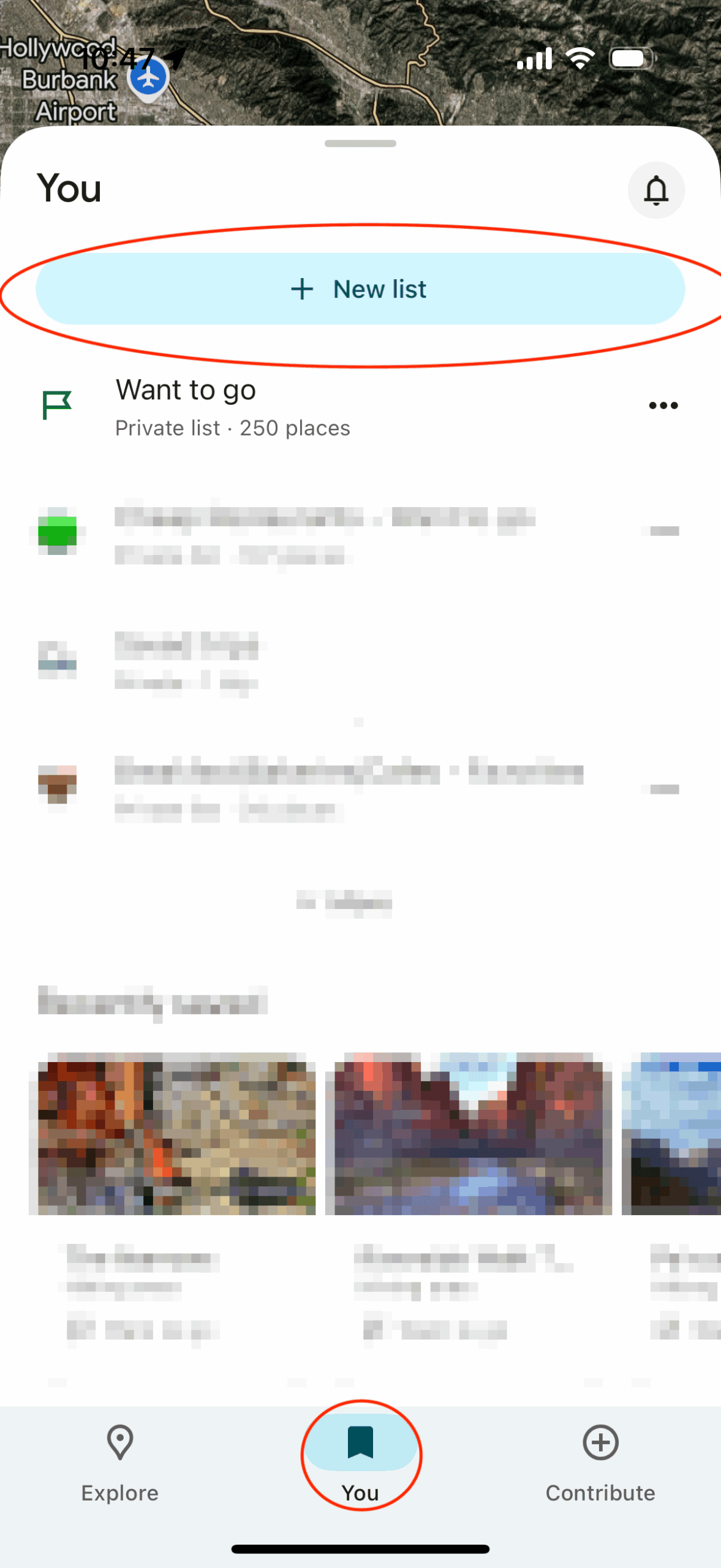
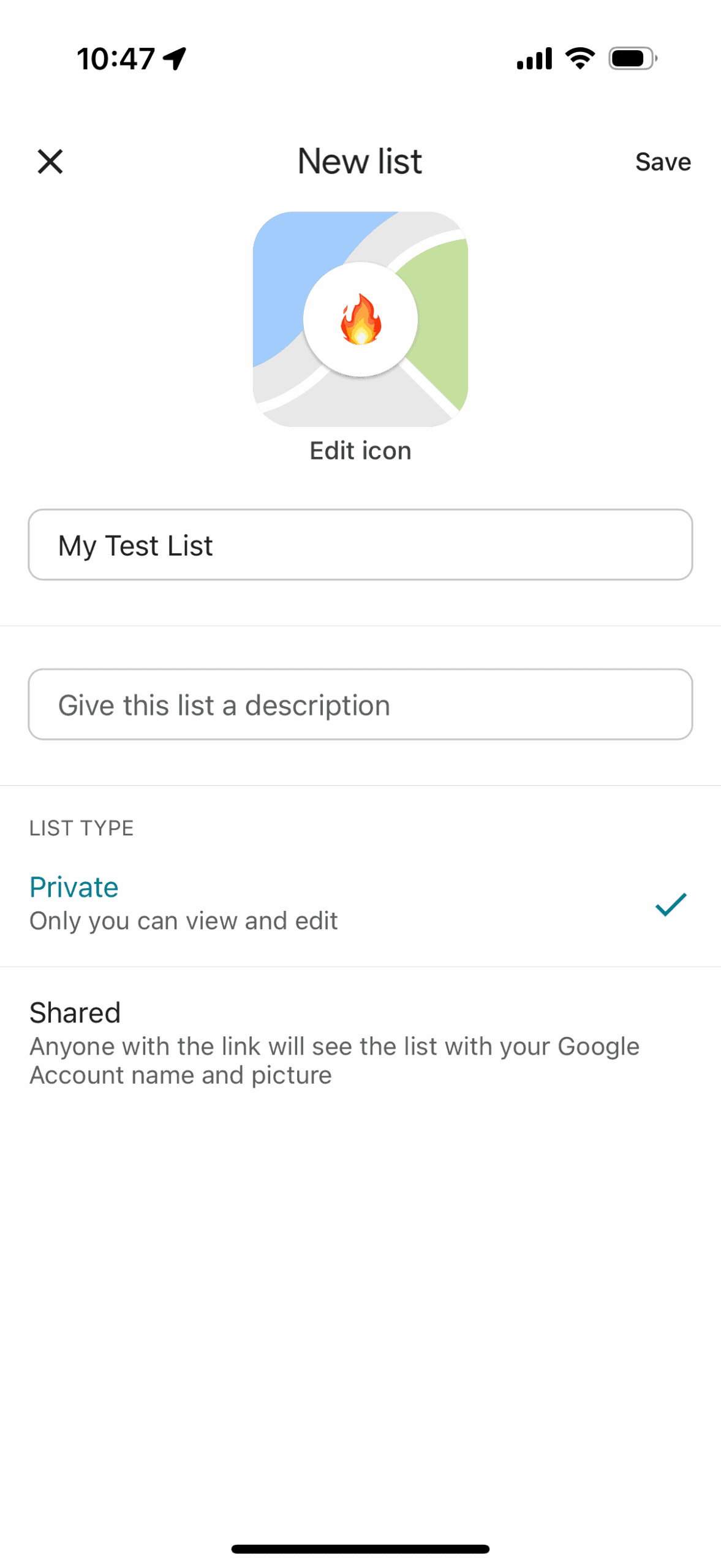
While the Lists feature does have some ready-made lists such as “Want to go” and “Favorites”, it is a simple process to create custom lists. To create a custom list in Google Maps, complete the following steps in your browser or mobile phone
- Clicked on the “Saved” tab on the left side of the screen (web) or bottom center of the screen (mobile)
- Choose “Lists” Tab
- Select “Create List”
- Provide a name for the list
- (Mobile only) Select a custom icon
- Press “Save”
Now, your custom list is created!
Adding Places to the List
Of course, an empty list doesn’t do much good. So, let’s talk about how to add things to your list. You can do this from the list itself or from any map location.
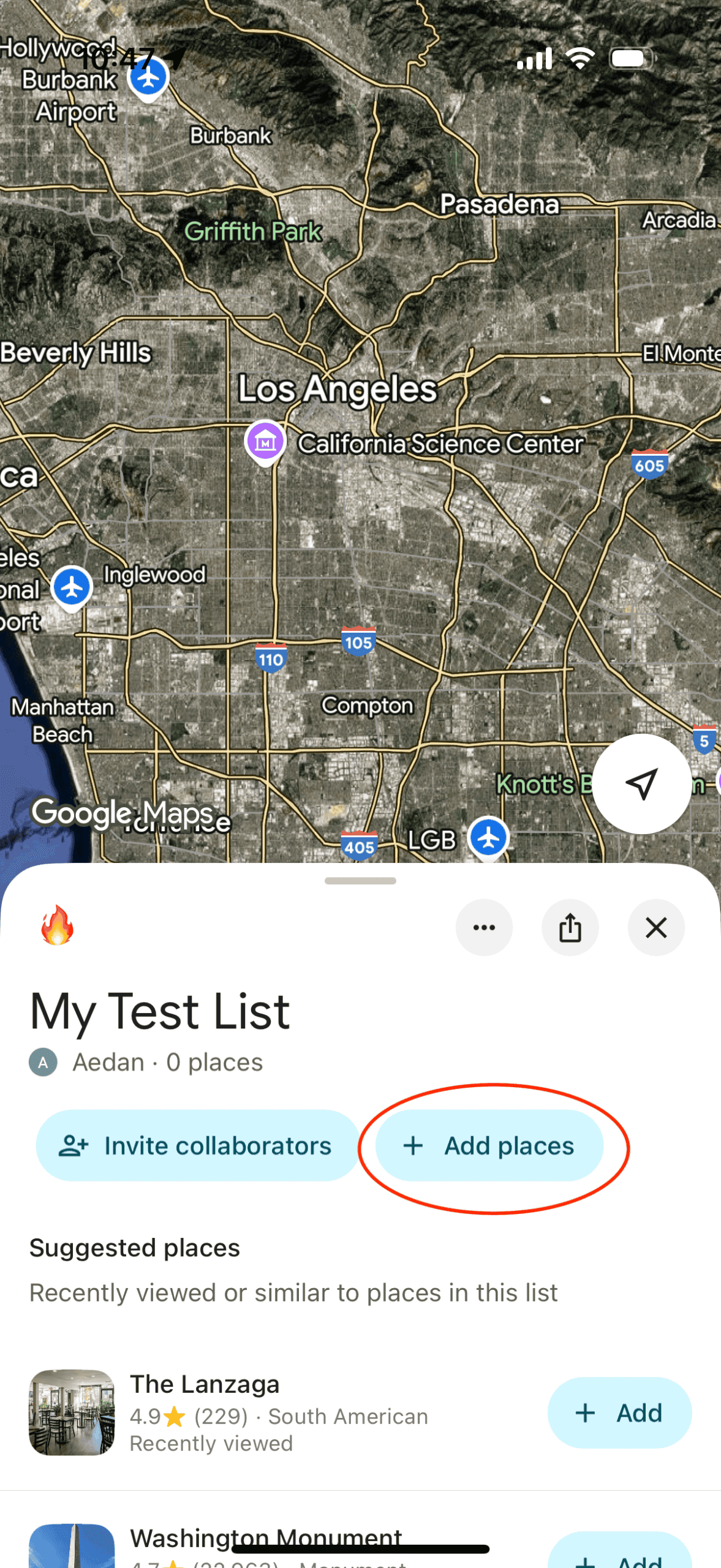
From the list screen you can click the “Add Places” button and search for the place by name or address. When it appears in the search window, click on it and it will be saved to your list.
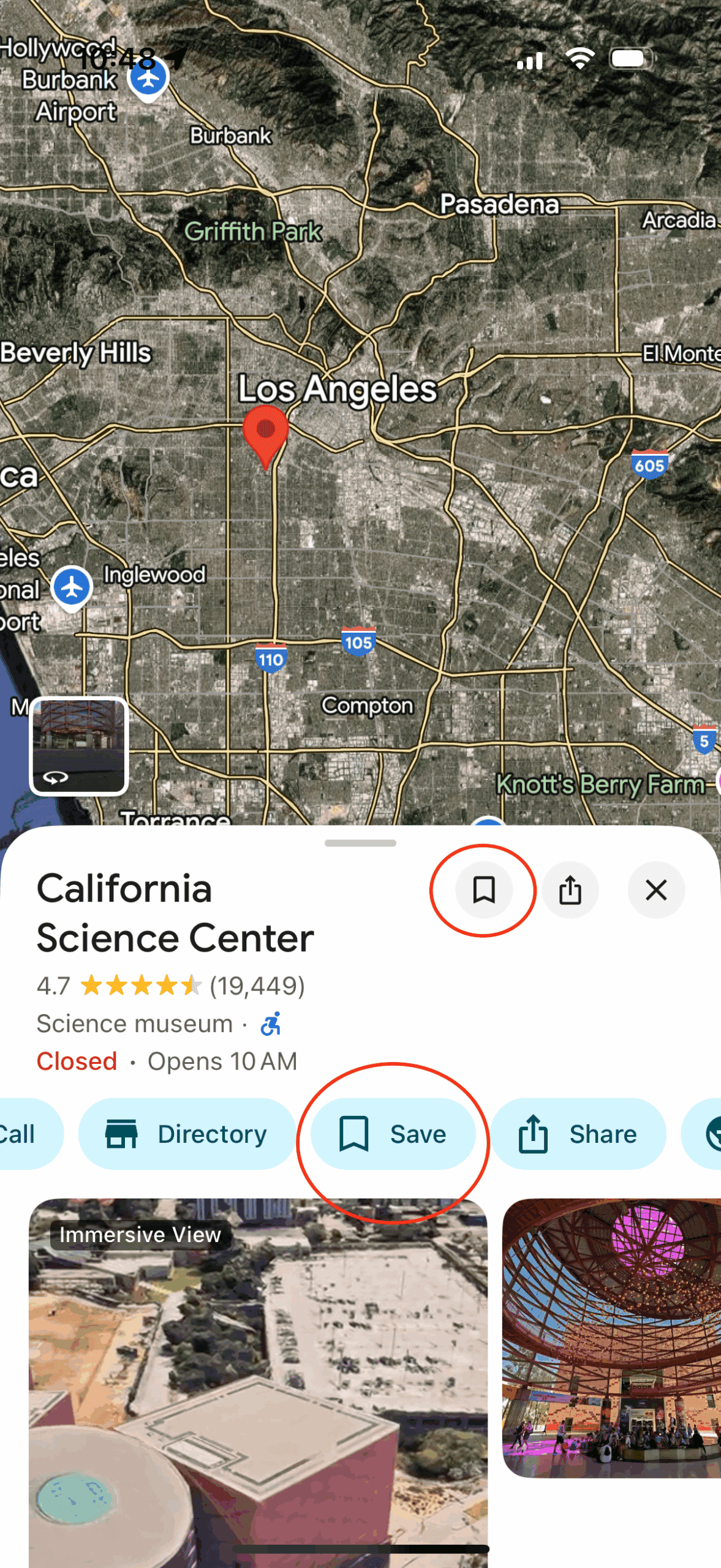
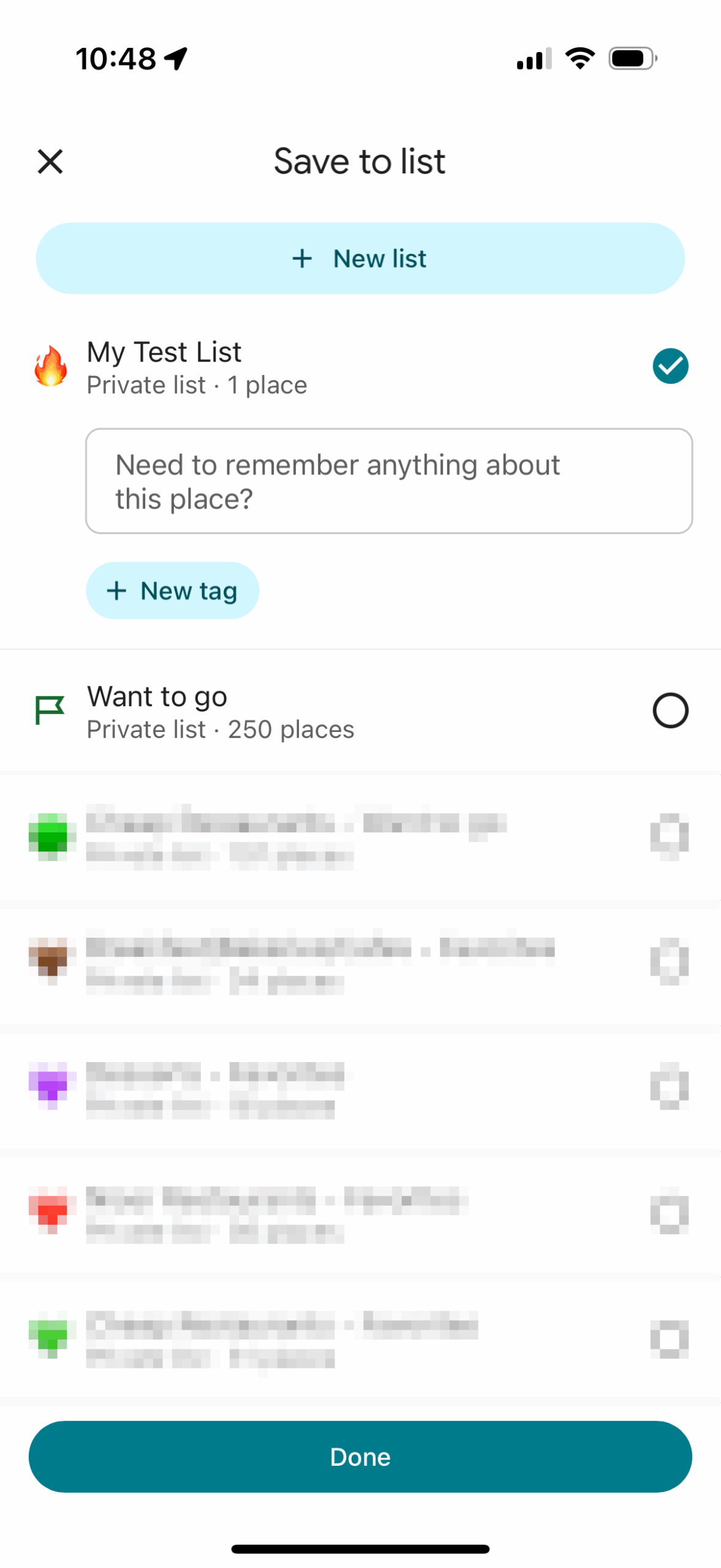
If you’re just browsing the map and want to add a location to a list, start by clicking on that location. Then, scroll through the pale blue icons until you see the one that says “Save”. It is also indicated by the ribbon icon from before. Click this button to be presented with all of the available lists. Then, select which list the location should be added to and click “Done”.
That’s it! That’s all there is to it. Now you can create lists and add things to them. Once locations are in your list you can see their icons on the map.
Google Maps doesn’t usually show up when people talk about tools for planning your travels, but it should. I use it constantly when I’m planning trips and it’s one of the most useful tools with the most information out there. Learning how to maximize it will help you plan smarter so you can travel happier.
Book Your Trip
Flights
Use Google Flights to search for specific dates, or set up destination alerts on Going
Accomodation
Book a hostel stay at Hostelworld
Search for hotels with Booking.com or Google Maps
For more info on searching for hotels on Google Maps, check out this post
Helpful Resources
Looking for more companies that can help you plan your trip? Check out my resource page for a list of all my favorite brands that I use when planning my own travels.
Disclosure: Note that some of the links in this article may be affiliate links. At no additional cost to you, these links allow me to earn a commission if you make a purchase. I will only recommend products and companies I actually use and the income I earn helps me to keep this site up and running.